How to Purchase and Download Your Predicted Papers
Follow this step-by-step guide to choose a Tyrion Papers resource, complete the secure Komerza checkout, receive your delivery email and download your PDF question papers and worked solutions.
Step-by-step purchase and download instructions
Choose your predicted paper
Open the Predicted Papers Full List and select the exam board, qualification and subject you need. Read the product details carefully so you choose the correct paper, solution set or complete bundle.
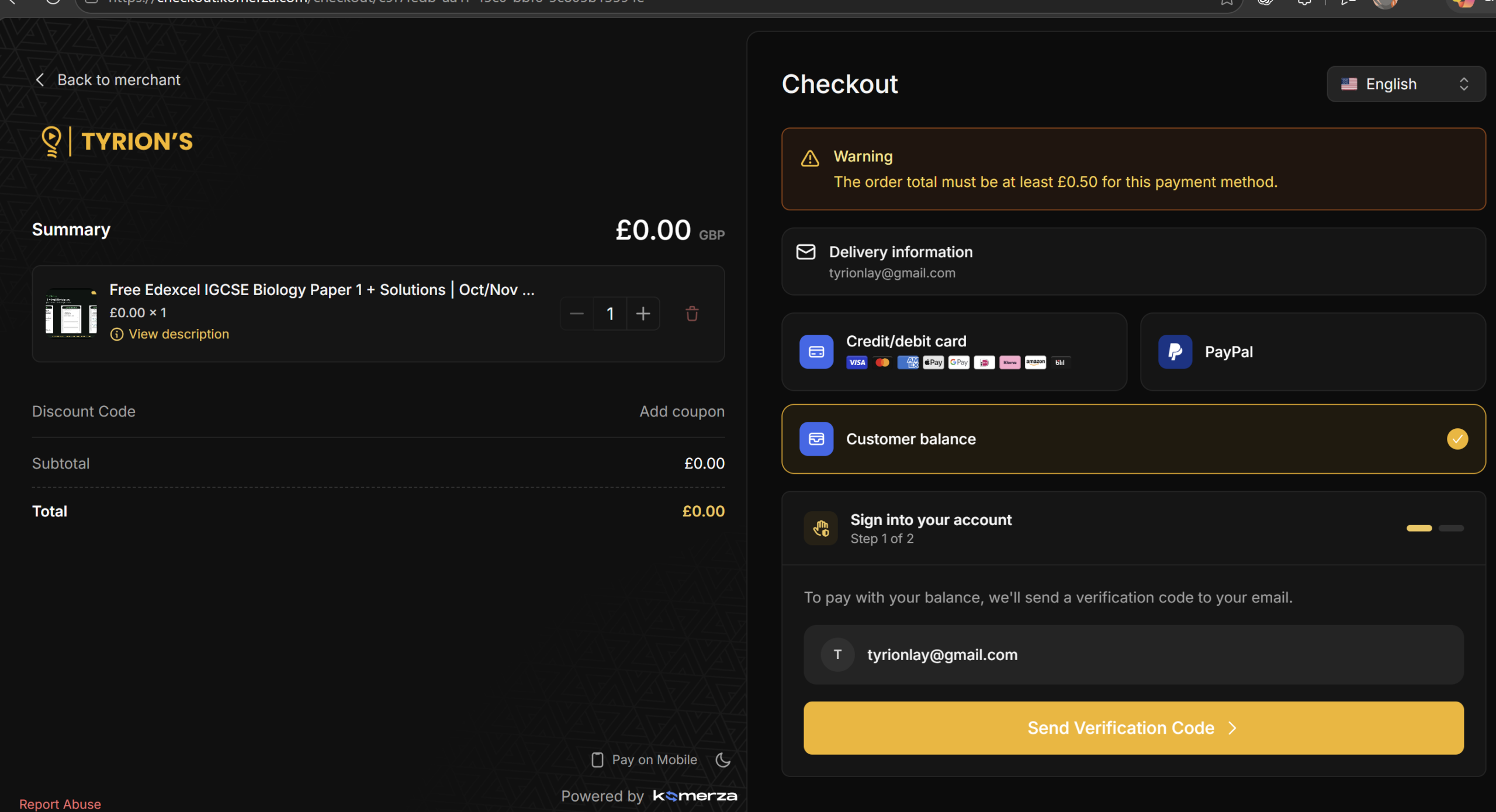
Open the product and continue to checkout
Review what is included, choose the option you want and use the product button to open the secure Komerza checkout. Your basket summary shows the product, quantity and order total before you continue.
- Confirm the paper and subject are correct.
- Confirm the displayed total before selecting a payment method.
- Enter the email address where you want the files delivered.
Select the correct checkout method
For a paid order, you can pay by credit or debit card. You can also select PayPal if you prefer not to enter card details directly at checkout.
Choose credit/debit card or PayPal, then follow the secure payment prompts.
Select Customer balance, sign in with your email and request the verification code. No payment is charged.
Complete payment or verify the free order
| Card | Enter the requested card details and approve the payment. Use this for paid orders of at least £0.50. |
|---|---|
| PayPal | Select PayPal and complete payment in PayPal. This is useful if you prefer not to type card details into the checkout. |
| Free sample | Select Customer balance, choose Send Verification Code, check your email and enter the code to confirm your £0.00 order. |
Do not close the checkout while payment or email verification is being processed.
Wait for the successful-order screen
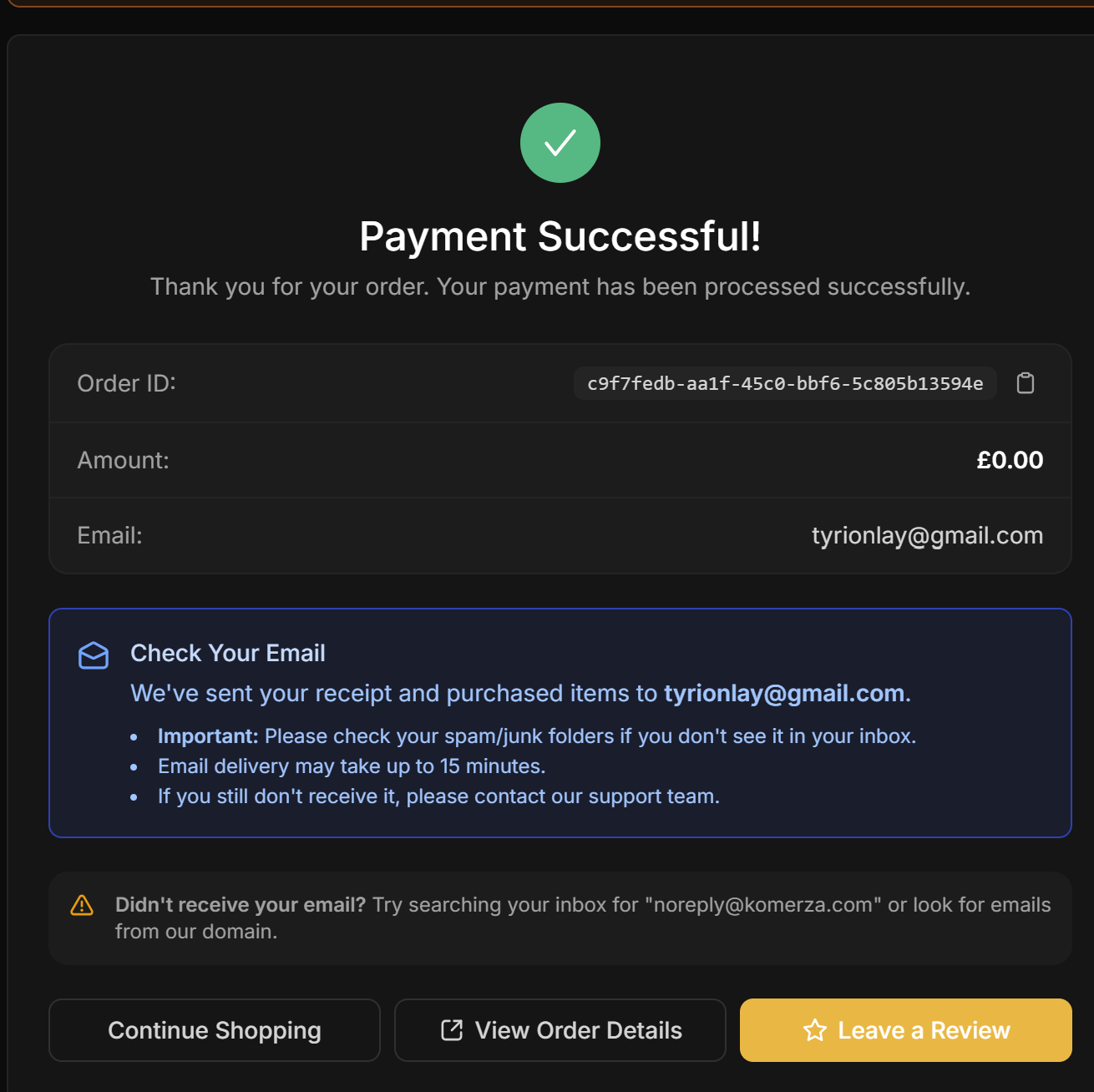
When checkout is complete, Komerza shows a confirmation screen with your order ID, amount and delivery email address. Keep the order ID in case you need support.
Open the delivery email
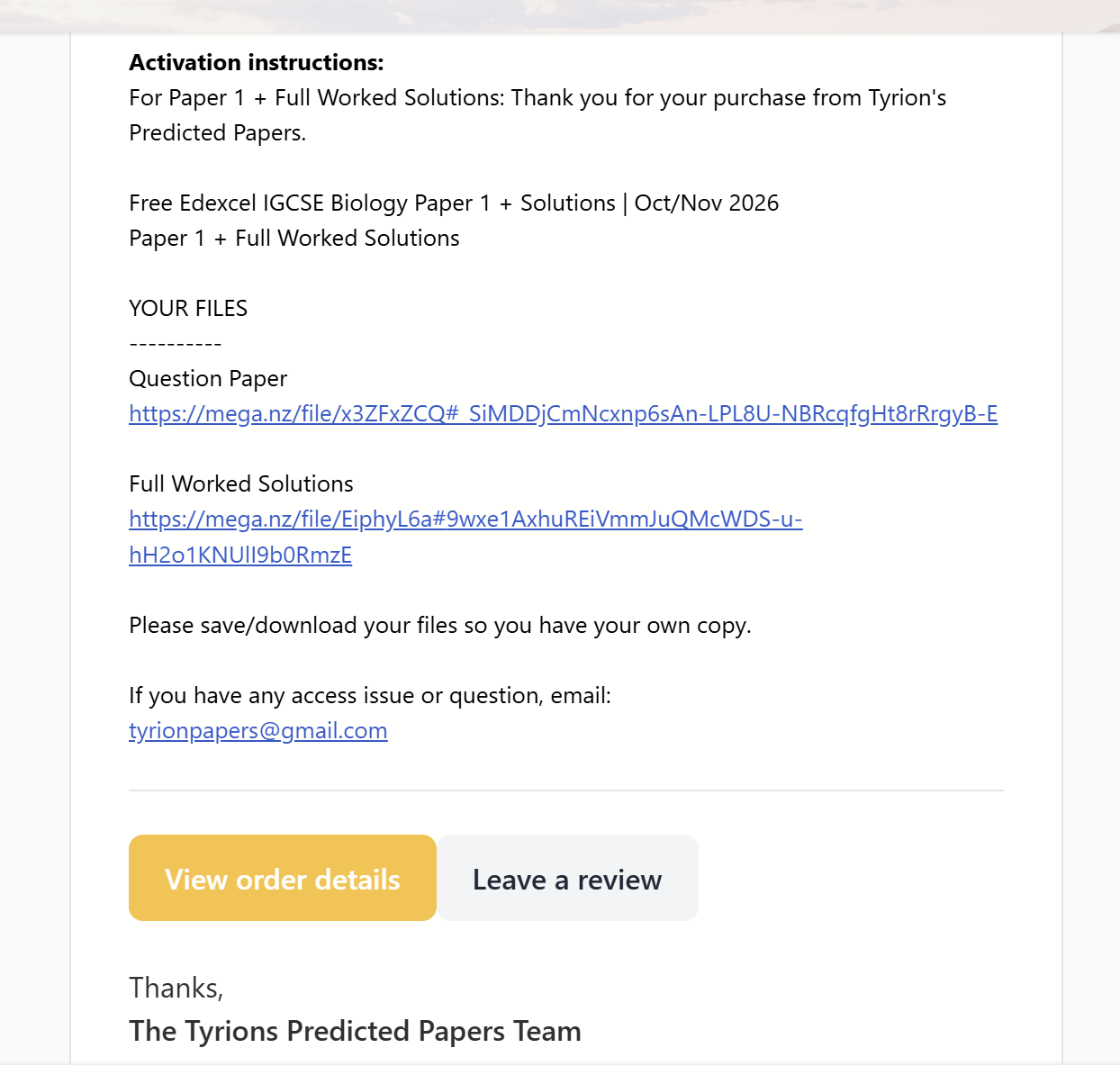
The delivery email contains the links for the files included in your order. Depending on the product, this may include a question paper, mark scheme, worked solutions or a complete bundle.
Download and save your PDFs
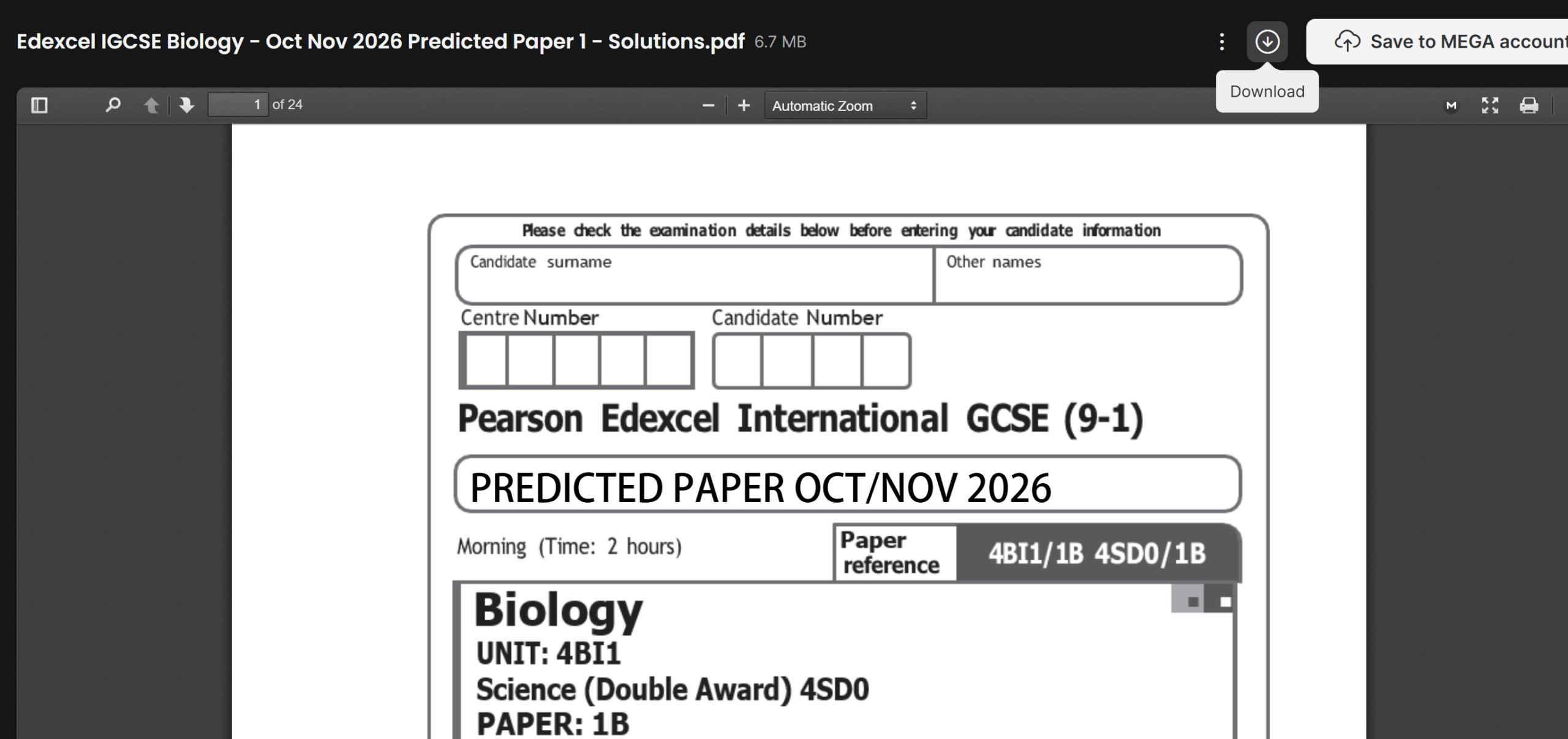
The file link opens a secure MEGA preview. Use the download icon near the top-right of the viewer to save the PDF to your phone, tablet or computer. You do not need a MEGA account simply to download the shared file.
- Use clear folders so the question paper and solutions stay together.
- Keep the delivery email until you have checked every file.
- Print the paper for timed practice or complete it digitally.
Quick answers
Why can’t I use card or PayPal for the £0.00 free sample?
Card and PayPal require an order total of at least £0.50. Select Customer balance, request the email verification code and confirm the free order instead. You will not be charged.
Can I pay with PayPal instead of entering card details?
Yes. For a paid order of at least £0.50, select PayPal at checkout and complete the payment through PayPal.
Where are my predicted-paper files?
Check the email address entered at checkout. Search for a message from noreply@komerza.com and look in spam or junk. Delivery may take up to 15 minutes.
What if a download link does not open?
Try a different browser or device and confirm that the full link opened. If the problem continues, email tyrionpapers@gmail.com with your order ID and the product name.
Can I download the files more than once?
Open the links from your delivery email and save the PDFs promptly. Keep your own backup copy for revision.